


How to Set Up a Shopify Staging Store (and Keep It in Sync)
The SimpleSync Team · Updated July 6, 2026
Every change you make to a live Shopify store is a small gamble. A theme tweak that breaks the cart on mobile. An app that rewrites your product descriptions. A bulk edit that goes one column sideways. When your storefront is also your income, "let's just try it and see" is not a strategy, which is exactly why a Shopify staging store exists.
A staging store ends the gamble. It's a private, faithful copy of your live store where themes, apps, and catalog changes can fail safely, and where your team can rehearse the big moves before customers ever see them. Agencies have worked this way for years. With SimpleSync, any merchant can, in about an afternoon.
Here's the complete setup, start to finish.
Why serious stores run staging
A staging environment pays for itself the first time it catches a problem. The most common wins we see:
Theme development without fear. Redesigns, section changes, and checkout-adjacent tweaks get tested against your real catalog (real product titles that overflow, real image ratios, real collection sizes) instead of a handful of demo products.
App auditions. Install that new bundling or review app in staging first. See what it does to your data and your page speed before it touches production.
Bulk changes, rehearsed. Repricing, retagging, restructuring collections. Run the operation in staging, check the result, then run it for real.
Team training. New staff can learn the admin, break things, and build confidence somewhere consequence-free.
The reason most merchants never do this? Building the copy by hand (exporting CSVs, re-uploading images, recreating pages and metafields) takes days and drifts out of date immediately. That's the part SimpleSync removes.
Step 1: Create the staging store itself
You need a second Shopify store to act as the staging environment. Two good options:
- A development store (free). Create one through a Shopify Partner account. Development stores cost nothing, and they're purpose-built for exactly this.
- A second standard store. If you prefer, any Shopify store works. Put it on the lowest plan and enable password protection so it's never publicly visible.
Name it clearly, something like yourstore-staging, so nobody ever confuses the two admins. That one naming habit prevents the classic mistake of editing the wrong store by accident.
Step 2: Mirror your live store with SimpleSync
Now fill the empty staging store with a faithful copy of production.
- Install SimpleSync on both stores: your live store (the source) and the staging store (the destination).
- Connect them. Grab the connection key from the source store's dashboard in the app, and link the staging store to it. The subscription lives on the source store only; staging needs nothing but the install.
- Start your copy. Click Copy from this shop in the top right of the app on your live store, pick your plan, and choose what to copy.
- Select everything you want mirrored: products with all their variants and media, collections, pages, blogs, files, metafields, metaobjects, URL redirects, translations, and your theme.
- Run it and verify. When the sync completes, spot-check staging: product counts, a few collection pages, your homepage sections.
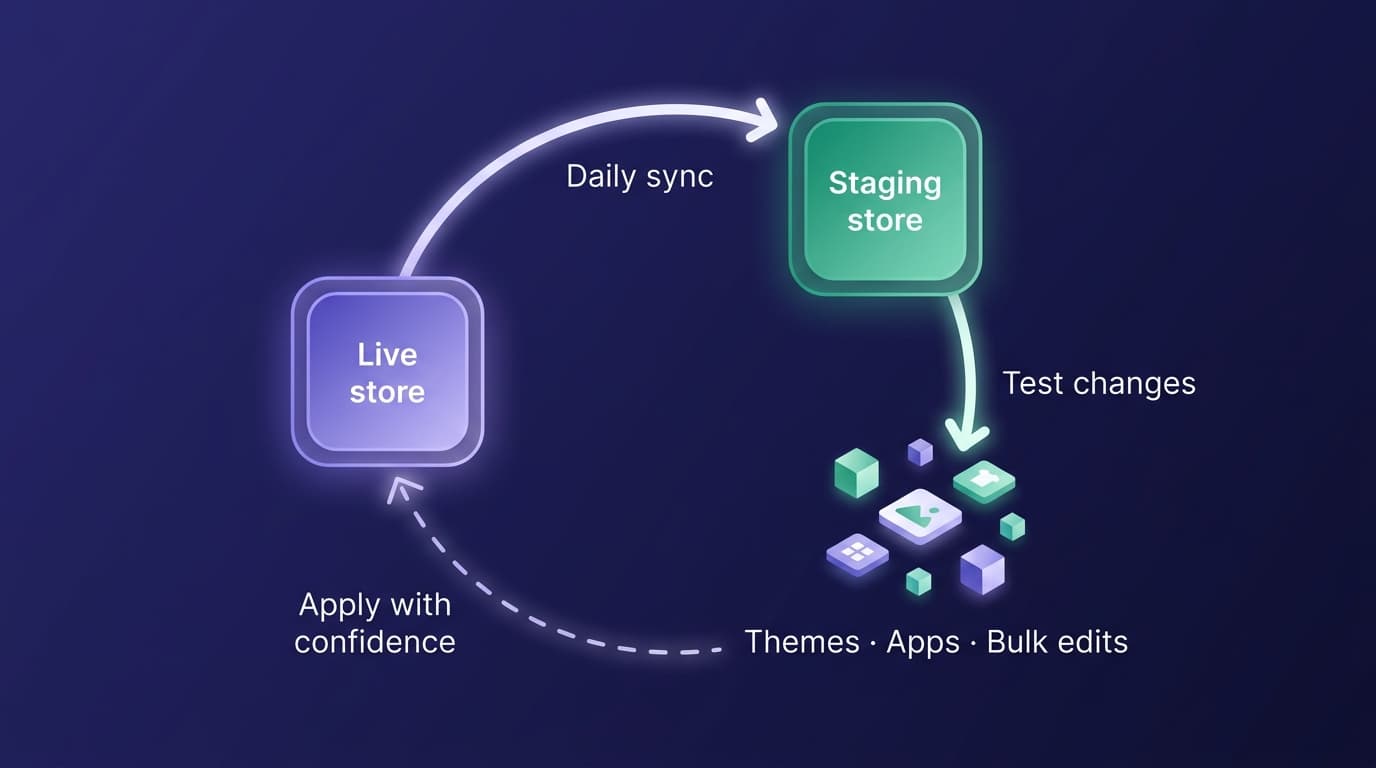
One copy, and your staging store looks and behaves like production, because it's built from production. For the full rundown of exactly what transfers (and the short list that doesn't), see what copies when you duplicate a Shopify store.
Step 3: Keep staging fresh automatically
A staging store is only useful while it matches production. Yesterday's mirror tests yesterday's store.
This is what scheduled syncs are for. Turn them on for the content types you want mirrored, and SimpleSync updates your staging store from production every day: new products appear, edited pages update, retired items fall away. No maintenance, no drift.
Two things worth knowing as you set the schedule:
- Scheduled syncs are comprehensive by design. Each run includes all items of every content type you've selected, keeping staging a true mirror. If you're mid-experiment on content that's in the schedule, remember the next run will refresh it from production.
- Themes are copied on demand. Theme copying runs as a one-time copy rather than on the daily schedule, which is exactly what you want in staging since the theme is usually the thing you're changing. When you want to re-baseline from your live theme, run a fresh on-demand copy.
What to test in staging (a starter checklist)
Once the mirror is live, put it to work:
- The next redesign: build and click through every template with real data
- App installs: watch what new apps change before production ever meets them
- Bulk catalog operations: pricing, tags, collection rules, metafield migrations
- Seasonal campaigns: stage the Black Friday homepage in October, calmly
- Checkout-adjacent settings: shipping displays, cart behavior, upsell placement
What stays out of staging, on purpose
SimpleSync copies your store's content, not its identity or its customers. Staging never receives customer records, order history, payment or shipping settings, or your third-party app configurations. Navigation menus and inventory quantities also stay behind. Menus take minutes to recreate, and a test store doesn't need real stock levels.
For a staging environment, these boundaries are the point: you get a working replica with zero personal data in it, which keeps testing clean and privacy simple.
Frequently asked questions
Do I need a paid SimpleSync plan on the staging store? No. The subscription lives on your source store only. The staging store just needs the app installed. No plan, no extra charge.
Can I use a free Shopify development store for staging? Yes. Development stores created through a Shopify Partner account are free and make excellent staging environments. A password-protected paid store works too.
Will the daily sync overwrite my experiments in staging? For the content types you've included in a scheduled sync, yes: each run updates staging to match your live store. Test freely between runs, and keep experimental work in duplicated themes or content types you've left out of the schedule.
Does my staging store get customer data? No, and that's deliberate. SimpleSync never copies customers or orders, so your staging environment stays free of that data by default. If your product content or metafields include anything sensitive, review those separately, staging doesn't screen for that.
How long does the first copy take? It depends on catalog size, but large catalogs are well supported. One sync runs at a time, and you can watch progress from the app.
Related guides
- The complete Shopify store migration guide: if you're planning a bigger move than a test environment, this walks through a full migration.
- What copies when you duplicate a Shopify store: the full checklist of what transfers automatically and what doesn't, useful for setting expectations before your first staging copy.
- Copy metafields and metaobjects between Shopify stores: if your theme leans on structured data, the sequencing rules that keep staging references intact.
- Copy products between Shopify stores: a closer look at what happens to variants, images, and metafields during a copy.
- Manage multiple Shopify stores from one source of truth: for teams running staging as one of several linked stores, not just a single mirror.
- Scheduled syncs: the feature Step 3 above relies on, explained in full.
Ship changes with confidence
The stores that move fastest aren't the ones that skip testing. They're the ones that made testing effortless. A staging store built and maintained by SimpleSync gives you a permanent, always-current rehearsal space for every risky idea.
Start your free trial of SimpleSync and have a staging store running before the day is out.