


What Copies When You Duplicate a Shopify Store: The Complete Checklist
The SimpleSync Team · Updated July 5, 2026
Before any merchant duplicates a Shopify store, one question matters more than every other: what actually comes across, and what doesn't?
Get the answer right and a duplication is a smooth afternoon. Get it wrong and you discover, mid-launch, that something you assumed would transfer needs to be rebuilt by hand. This checklist gives you the complete, honest answer up front, so you can plan the whole move before you start it.
The checklist at a glance
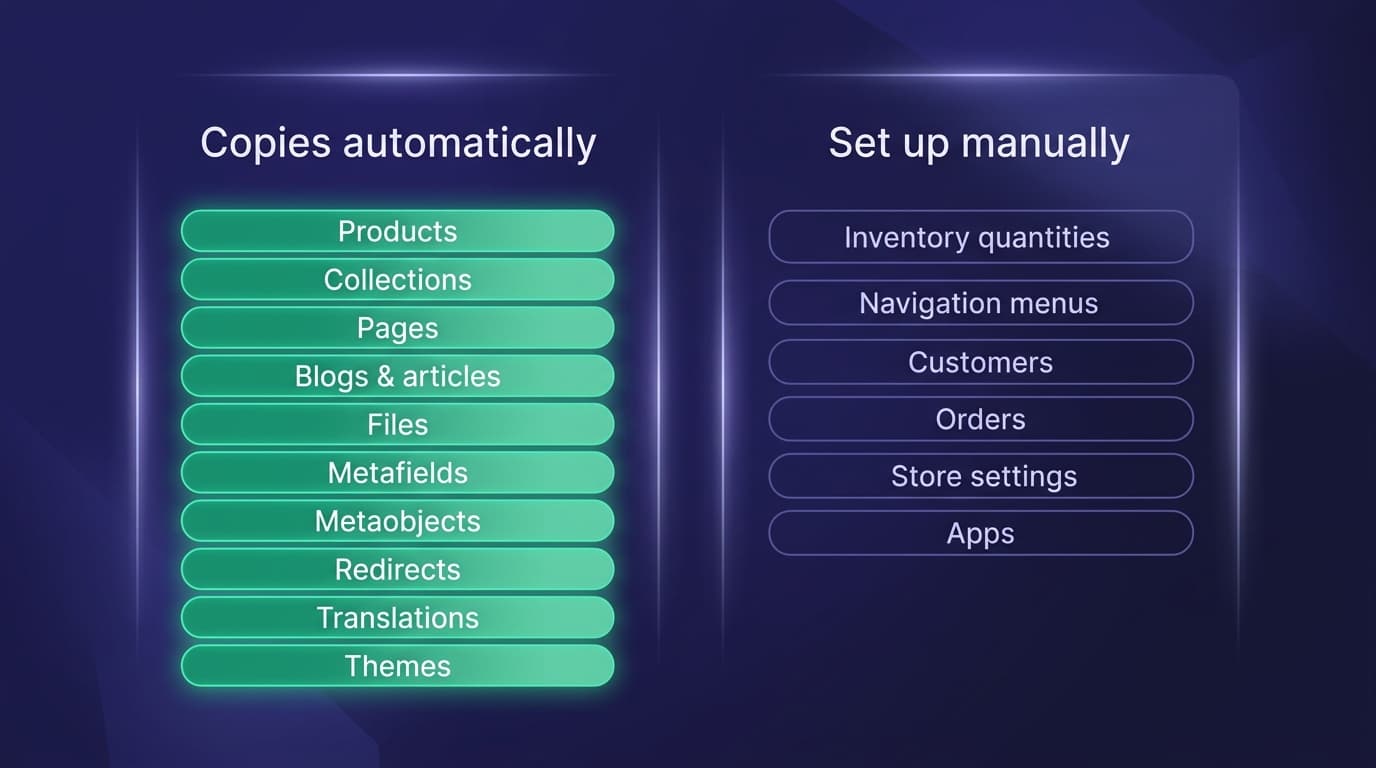
| Copies automatically with SimpleSync | Set up manually in the new store |
|---|---|
| Products: variants, images, video, descriptions, tags | Inventory quantities |
| Collections: manual and smart | Navigation menus |
| Pages | Customers |
| Blogs and articles | Orders |
| Files and media | Store settings: payments, shipping, taxes, legal |
| Metafields: definitions and values | Third-party apps and their configurations |
| Metaobjects: definitions and entries | |
| URL redirects | |
| Translations: by locale | |
| Themes: via on-demand copy |
The left column is the slow, error-prone majority of a duplication. It's the part that used to mean days of CSV exports and re-uploads. SimpleSync moves all of it in one run. The right column is the short list you finish by hand, and every item on it has a fast path, covered below.
What copies, in detail
Products, completely. Every variant, every image and video, descriptions, tags, and the product metafields that power your modern storefront sections. A product in the destination store looks and behaves like its original.
Collections, including smart ones. Manual collections arrive with their products attached. Smart collections arrive with their rules intact. One dependency worth knowing: if a smart collection's rules reference metafield definitions, copy those definitions first so the rules have something to point at. The metafields and metaobjects guide covers the right order.
Your content library. Pages, blogs, and articles transfer with their content and metafields, so your help pages, lookbooks, and years of posts don't get left behind.
The structured data layer. Metafields and metaobjects (definitions and values) are where most duplication attempts fall apart, because Shopify assigns every item a new ID in the new store. SimpleSync maintains the mapping between source and destination IDs and relinks references automatically, so a metafield pointing at a metaobject still points at the right one after the copy.
SEO plumbing. URL redirects copy over, preserving the redirect map you've built up over years.
Languages. Translations transfer by locale: pick the language, and your translated content follows.
Your theme. Theme copying runs as an on-demand copy, bringing your design across so the new store isn't wearing a default template.
The six things you'll set up by hand
Honesty here saves you a launch-day surprise, so let's be precise. These six don't transfer (most of them shouldn't), and here's the fast path for each:
- Inventory quantities. Product records copy; stock levels don't. This is a stable design boundary of SimpleSync. Plan on it, don't wait on it. Fast path: Shopify's inventory CSV export/import, or set quantities as you activate locations. Minutes to a couple of hours depending on catalog size.
- Navigation menus. Header and footer menus are rebuilt under Online Store → Navigation. Because your pages and collections already exist in the new store, this is pure point-and-click, usually 10–15 minutes.
- Customers. Deliberately excluded: personal data shouldn't silently replicate between stores. If the new store needs them, Shopify's own customer CSV export/import handles it in minutes, with you in control.
- Orders. Order history belongs to the store where the sales happened, and Shopify doesn't import orders between stores. Keep the original store's records accessible for accounting.
- Store settings. Payments, shipping, taxes, markets, and legal pages are the new store's identity. Walk Shopify's settings checklist fresh, which is also your chance to configure them correctly for the new store's purpose.
- Apps. Third-party apps are reinstalled and configured in the new store. Treat it as a healthy audit: most stores discover a few apps not worth carrying over.
Budgeting the manual finish
For planning purposes, here's how that six-item list typically lands on a calendar: navigation menus, 10–15 minutes; customers via CSV, under half an hour; inventory, minutes to a couple of hours depending on catalog and locations; settings, an hour done thoughtfully; apps, an afternoon if you audit as you go. In other words, the entire manual side of a duplication typically fits in a single working day, more if you have many locations, complex tax and shipping setups, or a long app list to reconfigure, scheduled after the automatic copy has already delivered the store. Knowing that up front is what turns a duplication from an open-ended project into a booked one.
Running the copy: four steps
- Install SimpleSync on both stores. The subscription (free trial on every plan) lives on the source store only.
- Connect the stores using the connection key from the source store's dashboard in the app.
- Click "Copy from this shop" on the source store, and select the content types to copy. Order tip for heavy metafield users: definitions and referenced items first, then the items that reference them.
- Run, then verify. Check product counts, open a few collections, click through key pages. Then work the six-item manual list above.
For the full end-to-end walkthrough (including go-live and domain cutover), see the complete store migration guide. If you're duplicating for testing rather than launch, the staging store guide is your path. And if it's really just the catalog you need, there's a faster route: copying products between stores.
Frequently asked questions
Does duplicating a store copy inventory quantities? No. Product records copy completely (variants, media, descriptions, metafields) but stock levels don't transfer. Set inventory in the new store manually or with Shopify's inventory CSV. This is a deliberate design boundary, not a gap awaiting a fix.
Do navigation menus transfer? No. Header and footer menus are rebuilt in the new store's admin under Online Store → Navigation. With your pages and collections already copied, rebuilding menus typically takes a few minutes.
What about customers and orders? SimpleSync never copies customer or order data. Customers can be moved with Shopify's own CSV export/import if you need them; order history stays with the store where the orders happened.
Do I need a subscription on both stores? No. One subscription on the source store covers the copy. The destination store only needs the app installed.
Can I do a full duplication within the free trial? Most stores complete a full copy well within the trial window. Very large or complex catalogs may need more time, so start early if yours is on the bigger side.
Related guides
- The complete Shopify store migration guide: the full walkthrough if you're duplicating to launch, not just to test.
- Set up a Shopify staging store: if the duplicate is for testing rather than a permanent second store.
- Manage multiple Shopify stores from one source of truth: for a duplicate that becomes a permanent spoke in an ongoing network.
- Copy products between Shopify stores: the faster route if it's really just the catalog you need.
- Copy metafields and metaobjects between Shopify stores: the sequencing rules behind the structured-data section above.
- Scheduled syncs: to keep a duplicate current automatically instead of a one-time copy.
Plan it once, run it once
A store duplication goes smoothly when there are no surprises, and now there aren't any. Everything in the left column moves in one run; everything on the right column has a fast manual path you can schedule.
Start your free trial and let the automation handle the majority of the work today.